Google Workspace Studio: the AI automation tool you already pay for
Google Workspace Studio is already in your Workspace plan. Automate email, meetings and admin with AI in plain English, no code needed. Here's how to start.
· 7 min read
Imagine typing one sentence and having an AI assistant take over the jobs that eat your week: sorting email, filing invoices, chasing meeting actions, keeping spreadsheets up to date. That’s Google Workspace Studio, and here’s the best part: if your business runs on Google Workspace, it’s already in your plan.
No developer, no extra subscription, no integration project. You describe what you want in plain English, Gemini builds the automation, and it gets to work in the background across Gmail, Drive, Sheets, Chat and Meet.
Let’s look at what it can do, five automations you can have running by Friday, and the tips that make them shine.
What Google Workspace Studio does
Here’s Studio in action:
Studio builds flows: small automations that start when something happens and then work through a few steps for you. Every flow has two parts:
- A starter. The event that kicks it off. For example: an email arrives, a file lands in a Drive folder, a form response comes in, a meeting ends, or simply 07:00 every weekday.
- Steps. What happens next. Save an attachment to Drive, add a row to a Sheet, label an email, post in a Chat space, draft a reply, create a task.
Here’s where it gets exciting: some of those steps use Gemini. A flow can read an email and decide whether it’s urgent, pull the supplier name and amount out of an invoice, or summarise a meeting’s notes. Work that used to need a person’s attention now happens on its own, in seconds.
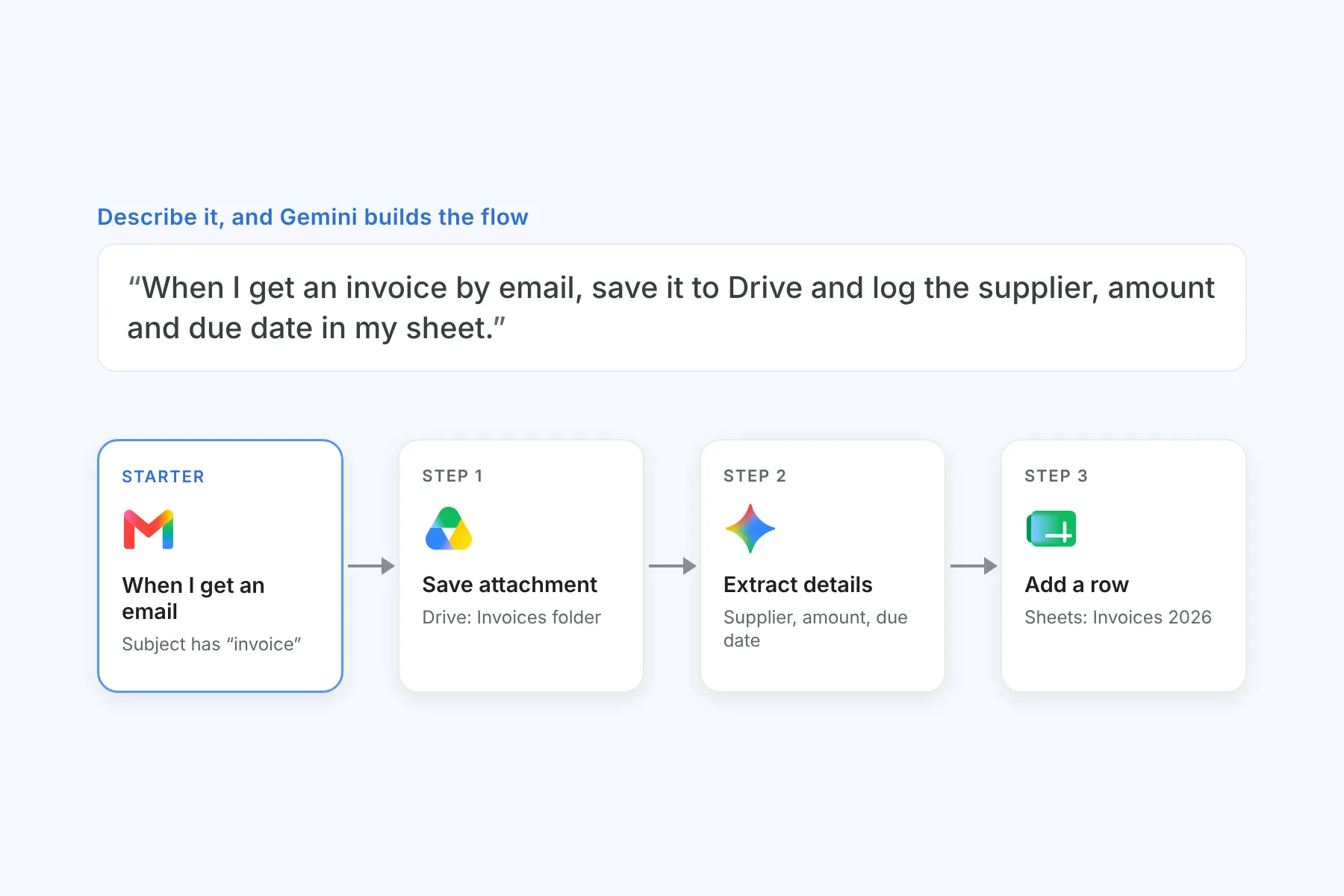
Even better, you don’t have to build flows step by step. Type something like “When I get an email with an invoice attached, save it to my Invoices folder in Drive and add the supplier, amount and due date to my Invoices sheet”, and Gemini builds the flow for you in moments. Prefer a head start? Pick from dozens of ready-made templates.
And it doesn’t stop at Google apps. Studio connects to Asana, Jira, Mailchimp and Salesforce too.
Is it included in my plan?
Good news: almost certainly. Google Workspace Studio comes with Business Starter, Business Standard and Business Plus, as well as the Enterprise plans. Higher plans get higher usage limits.
Ready to try it? Go to studio.workspace.google.com on a computer and sign in with your work account.
Can’t get in yet? Your Workspace admin just needs to switch it on. Studio, Gemini and the “smart features” setting all need to be enabled for your account. Admins can turn Studio on for the whole company or for selected departments first. If we manage your Workspace, ask us and we’ll have you up and running.
Five flows to build this week
1. Never miss an important email
Starter: when I get an email. Steps: ask Gemini to decide whether the email is from a client and needs a reply today. If yes, apply a “Priority” label and send yourself a Chat message with a one-line summary.
This is the one people love first. The emails that matter rise to the top, and you stop scanning a full inbox to find them.
2. Invoices filed and logged without anyone touching them
Starter: when I get an email containing “invoice” with an attachment. Steps: save the attachment to a Drive folder, extract the supplier, invoice number, amount and due date, and add them as a new row in a Sheet.
Your bookkeeper gets a tidy, up-to-date list every day, and month end gets a whole lot calmer.
3. Meeting follow-ups that actually go out
Starter: when meeting outputs are ready (after Gemini has taken notes in Meet). Steps: pull out the action items with owners and dates, then draft a follow-up email to the attendees for you to check and send.
There’s also a starter that runs before a meeting, so you can get a short brief in Chat with the agenda, attendees and attached documents.
4. New enquiries straight to the right person
Starter: when a Google Forms response comes in, or when an email arrives at your sales address. Steps: ask Gemini to summarise the enquiry and classify it (new quote, support, billing), then post it in the matching Chat space.
Every enquiry lands with the right person straight away, even over a long weekend.
5. A morning briefing
Starter: on a schedule, every weekday at 07:30. Steps: summarise yesterday’s unread emails and today’s meetings, and send the summary to you in Chat.
Start the day fully briefed in the time it takes to finish your coffee.
How to build your first flow
- Open Studio and either pick a template or describe the flow in plain language.
- Check the starter. Make it as narrow as you can: a specific sender, subject word, label or folder, rather than every email.
- Check each step. Open them and read what Gemini set up. Add the Drive folder, Sheet or Chat space it should use.
- Run a test. Studio can test the flow against your recent data, so you see the result before anything runs for real.
- Turn it on, then check the activity log after a day or two to see what it did.
Tips to get the most from your flows
- Start with one quick win. A single flow that saves ten minutes a day adds up to a week of time back every year. Get it running, enjoy it, then build the next.
- Extract first, then ask. Use the extract step to pull out the exact fields you need, then give those to Gemini. It’s more reliable than asking Gemini to work everything out from a whole email.
- Gemini only sees what you give it. Each AI step works from its own prompt and doesn’t automatically know what earlier steps did. Use the variables button to pass in the subject, sender or extracted fields.
- Use “decide” for judgement calls (is this urgent, is this a complaint) and plain conditions for facts (is the amount over R10,000).
- Draft, don’t send. Let flows prepare replies and summaries, and let a person read them before they go to a client. AI does the groundwork; people decide.
- Aim your flows. From 1 November 2026, Google moves Studio from promotional access to monthly usage limits. Flows with a clear focus, like invoices from your regular suppliers, stretch those runs much further than one that fires on every email.
- Name flows clearly. “Invoices from suppliers to Finance sheet” is easy to find and fix in six months’ time. “My flow 3” isn’t.
What about security?
Studio runs inside your Google Workspace, under the same rules as everything else:
- A flow can only reach what the person who built it can open. It doesn’t get access to anyone else’s mailbox or files.
- Your data stays yours. Google doesn’t use it for advertising or to train its general AI models.
- Your existing controls still apply. Data loss prevention rules in Drive aren’t overridden, and admins decide who can use Studio and which third-party connections are allowed.
The one thing worth doing first: because flows and Gemini can find anything a user can open, tidy up files and shared drives that are shared more widely than they should be.
For business owners and decision makers
Studio shows where AI is heading for small and medium businesses, and it’s a big step. No separate system to buy, integrate and train people on. It’s built into the tools your team already uses, under the security and admin controls you already have, at no extra licence cost.
The businesses seeing the biggest gains go one step further: they pick their most repetitive processes and build flows around them on purpose. That’s where the hours really come back.
That’s where cozan helps:
- Set it up properly. We turn on Studio and Gemini in your Admin console, roll it out department by department, and decide which third-party connections your team can use.
- Tidy sharing first. We review over-shared files and drives so AI only surfaces what it should.
- Build around your real work. We sit with your team, map the jobs that eat their week (invoices, enquiries, reporting, follow-ups) and build and test the flows with them.
- Connect your business systems. When a flow needs to reach your CRM, accounting package or line-of-business app, we build custom steps and integrations so the data moves without copy and paste.
- Go further with AI agents. For agents that work across Microsoft 365, your business apps and your own data, there’s Gemini Enterprise.
We work AI first, with a person in the loop, always. The goal is to give your people back the hours they spend on routine work, so they can focus on clients, growth and the work only they can do.
Ready to see what Studio can do for your business? Talk to us about AI in your Workspace. If you’re new to Gemini, start with what Gemini in Google Workspace does for every role, or see plans and pricing in rands.