Free Google Workspace training for your team
Where your team can learn Gmail, Drive, Meet and Gemini for free, from Google's own courses and our how-to guides, plus a first-week checklist for new staff.
· 6 min read
New staff have plenty of small questions in their first week. How do I share a folder? How do I book a meeting room? Where do I set up my signature? Usually one helpful colleague ends up answering all of them.
It doesn’t have to work like that. Google publishes free courses, cheat sheets and videos for every app and many roles, and most lessons take a few minutes. We’ve added how-to guides for the questions our clients ask most.
This page puts it all in one place. Send it to every new starter, or bookmark it for your team.
Start with Google’s Learning Center
The Google Workspace Learning Center is Google’s training site for people who use Workspace at work. There’s nothing to sign up for, and it’s written for users, not IT people.
Send a new starter these four pages first:
- What to do on your first day: signing in, finding the apps and the basics of Gmail, Calendar and Drive.
- Your first week and beyond: the habits that help a team work well together, like sharing files instead of attaching them.
- Cheat sheets and reference guides: one-page guides for each app. Print them and pin them up.
- Switch from Microsoft: for anyone who has used Outlook, Word and Excel for years. It shows where to find everything.
For short videos, the Google Workspace YouTube channel has tips, feature demos and “what’s new” updates. Most run two to five minutes, and it’s the quickest way to see a new feature before it reaches your account.
Still deciding whether to move? See how Google Workspace compares with Microsoft 365 and how a migration with us works.
A first-week checklist for new staff
Copy this into the welcome email for your next new starter. New staff can do all of it themselves, and the links on this page cover each step.
Day one
- Sign in to your work account and set a strong, unique password.
- Turn on two-step sign-in.
- Create a Chrome profile for work, so work and personal browsing stay apart.
- Set up your email signature, or check the company one is showing.
- Add your work account to your phone.
By the end of the week
- Read Google’s first day and first week pages.
- Find the shared drives and folders your team uses, and save new work there rather than in your own Drive.
- Share your calendar with your team and set your working hours.
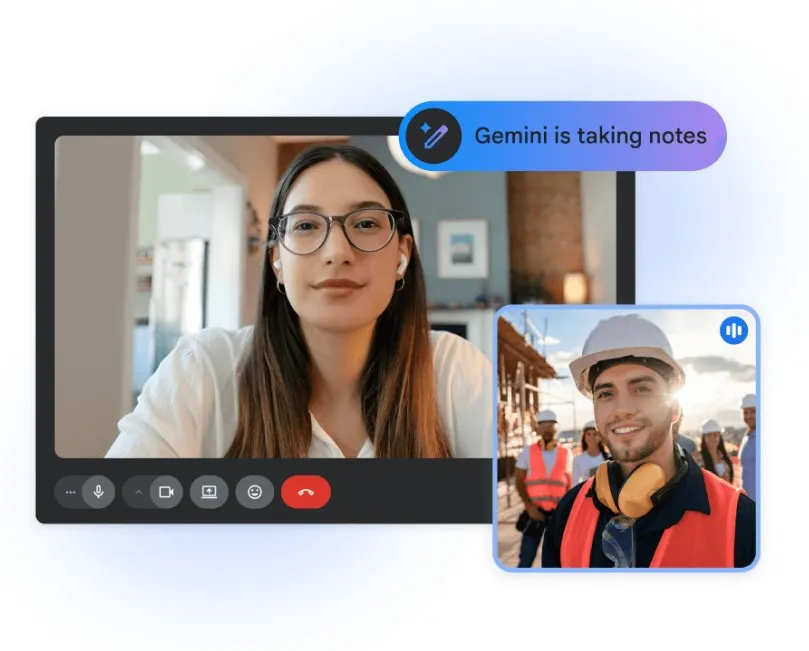
- Join a test Meet call: check your camera, microphone and background.
- Take Google’s phishing quiz and learn how to report a suspicious email.
- Watch lesson 1 of Gemini at work and try Help me write on a real email.
- Print the cheat sheet for the app you’ll use most.
Learn by app
Each app has its own section in the Learning Center, with short lessons from beginner to advanced. Our own guides are in the last column.
| App | Google’s training | Our guides |
|---|---|---|
| Gmail | Gmail training | Gmail templates, collaborative inbox |
| Drive | Drive training | |
| Docs | Docs training | Draft an email together in Docs |
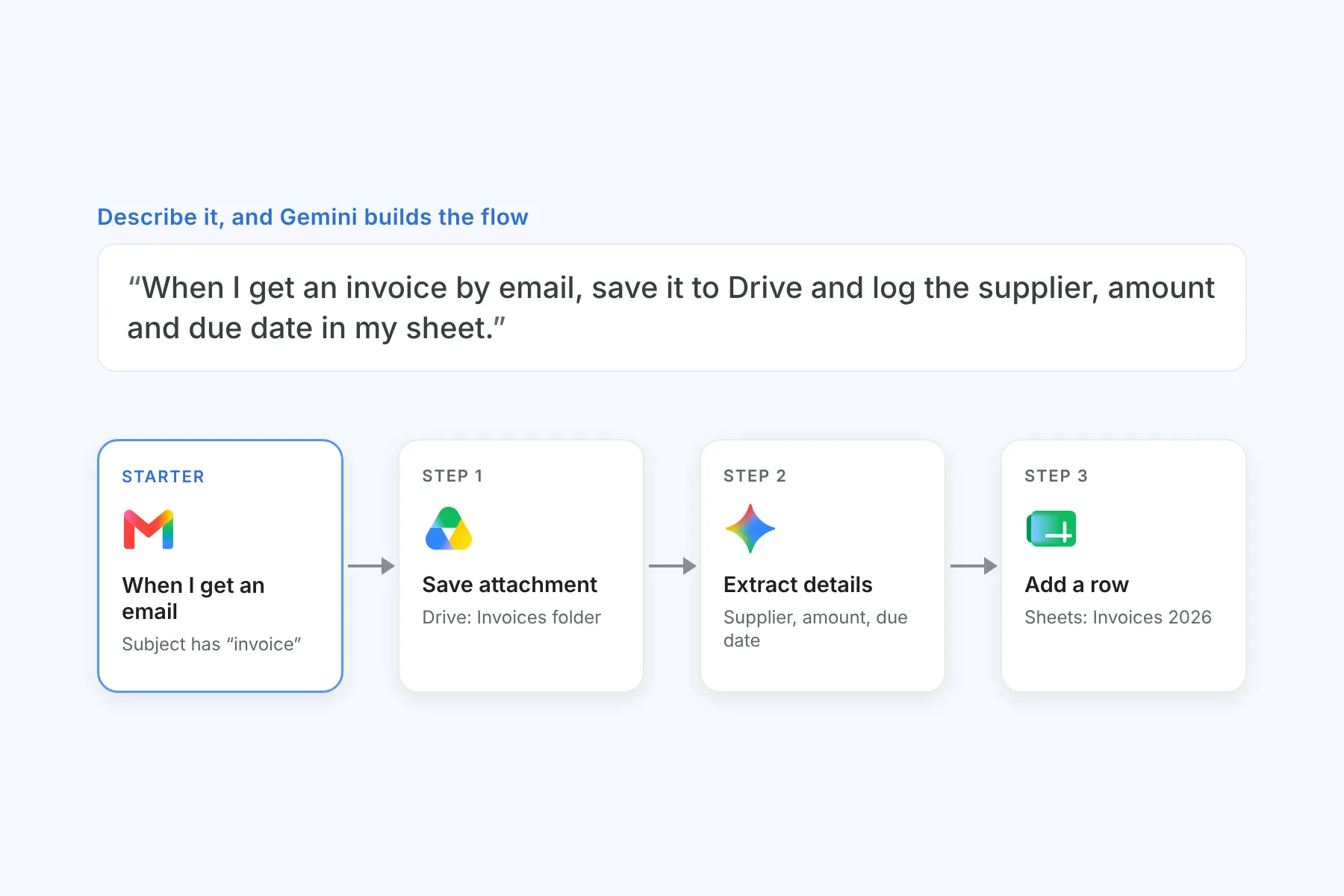
| Sheets | Sheets training | Gemini in Sheets, log invoices to a Sheet automatically |
| Slides | Slides training | Gemini in Slides |
| Calendar | Calendar training | |
| Meet | Meet training | Change your background in Meet |
| Chat | Chat training |
Learn by role
Google also has guides for specific jobs, showing how a bookkeeper or a PA uses Workspace day to day:
- Administrative assistants: for PAs and office managers who run inboxes, calendars and shared files. Pair it with our collaborative inbox guide if more than one person answers the same address.
- Sales and marketing: for the people chasing leads and writing proposals. Gmail templates save the most time here.
- Finance: for bookkeepers and finance teams who live in spreadsheets.
- Human resources: for hiring, onboarding and staff records.
- Law practices: for attorneys and the people who support them.
Security for everyone
Most break-ins at small businesses start with someone clicking a bad link. Ask everyone on your team to spend ten minutes on these:
- Secure your account with two-step sign-in: a code on your phone as well as your password, so a stolen password alone isn’t enough.
- Google’s phishing quiz: a set of real-looking emails. Spot the fakes and see what gave them away.
- Avoid and report phishing emails: the warning signs Gmail looks for, and how to report a suspicious email so Google can block it.
Learn Gemini at work
Every Google Workspace Business plan includes Gemini, Google’s AI assistant. A few short lessons are enough to get your team using it for real work.
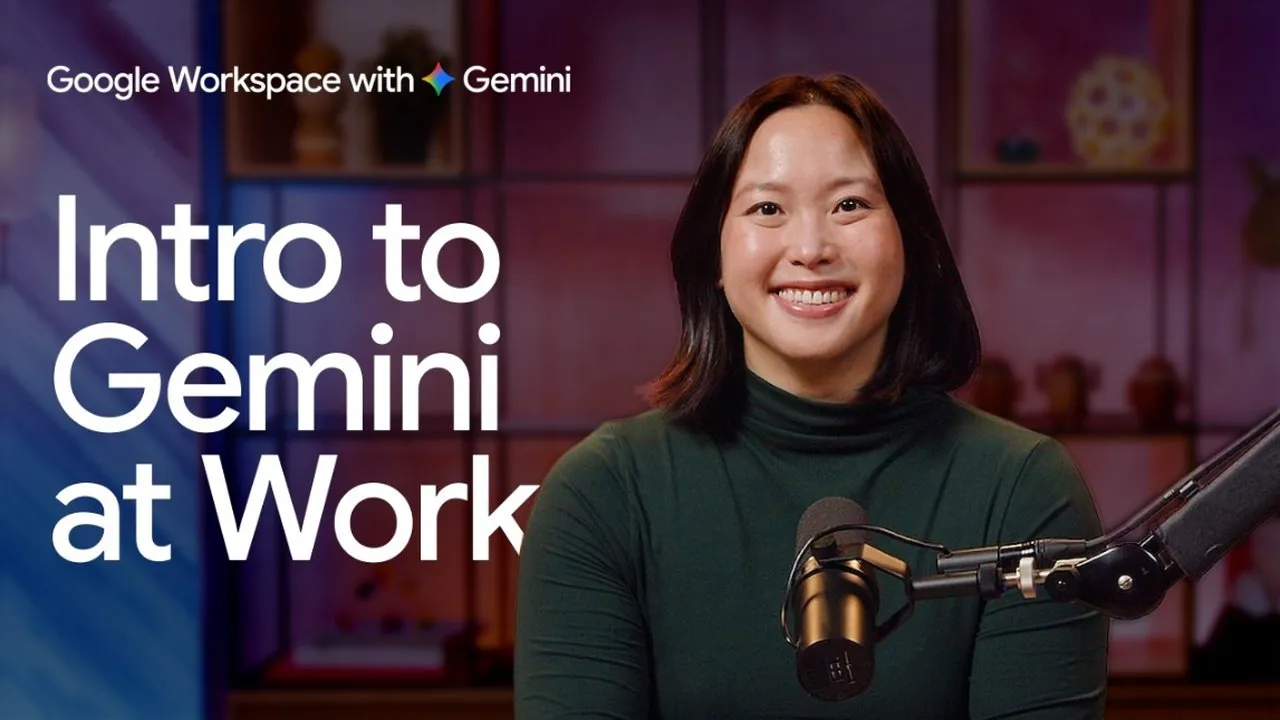
Google’s AI Boost Bootcamp teaches it in under 50 minutes: five short lessons and a wrap-up, from Help me write in Gmail and meeting notes in Meet to presentations, Gemini Notebook and your own Gems. Lesson 1 is below. The rest of the playlist is on YouTube.
After the lessons, use these for reference:
- Gemini cheat sheet: what Gemini can do in each app, on one page.
- Tips for writing prompts: how to ask for what you want and get a useful first draft.
- Prompts by role: ready-made examples for sales, finance, HR and more.
Gemini writes a good first draft, but a person should always check it before it goes to a client. That’s how we work too: AI first, with a person in the loop.
To see how each role in your business can use Gemini, read Gemini in Google Workspace for business. When your team is ready to automate routine work, read about Google Workspace Studio.
Admin training
Your Workspace administrator adds new staff, resets passwords and closes accounts when people leave. Here’s where they can learn how.
- Training from us, if you want it. We can take your administrator through the basics of the Admin console, so they can handle day-to-day changes themselves. If you’d rather not do the admin at all, Enhanced Support hands it to our team.
- Google’s admin help. Getting started and adding and managing users cover the jobs that come up most.
- Our guides. Users, groups and aliases explains which one to use and what each costs, and archived users shows how to keep a leaver’s data without paying for a full licence. Protect your business against phishing covers the settings that stop fake email from your domain.
Who does the admin
You choose how much of it we do:
- Standard Support (included with every licence): your administrator does the admin, and we answer your team’s how-to questions.
- Enhanced Support: we do the admin when you ask, such as setting up new staff, closing accounts when people leave, group addresses and email signatures. You also get faster responses and remote help on your team’s computers.
- Managed Workspace: we become your Workspace administrator and look after it on a regular schedule. We close accounts the same day someone leaves, and we train your administrator and your team.
Compare our Google Workspace support tiers.
When to ask us for help
The guides cover most questions, but you don’t have to work everything out alone. Our help desk is there for everyone on your domain, not only your administrator. If a guide doesn’t answer your question, email helpdesk@cozan.co.za or send us a message, in English or Afrikaans.
Contact us straight away when:
- Someone can’t sign in, or has lost the phone they use for two-step sign-in.
- Someone clicked a link they shouldn’t have, or entered their password on a page that looked wrong. The sooner we know, the less it costs.
- Something doesn’t work the way the guides say it should. Sometimes the fault is on Google’s side: we log the case with Google and follow it up for you.
- You need to add or remove licences, or have a question about your bill.