Google Workspace CLI and MCP servers: connecting AI agents to your business safely
Google has released the Workspace CLI and managed MCP servers so AI agents can work across Gmail, Drive, Calendar and Chat under enterprise security controls.
· 6 min read
AI tools are moving past chat windows. Teams increasingly want AI agents that can work directly inside the tools they use every day: checking a calendar, pulling a file from Drive, summarising an email thread or posting an update in Chat.
Until recently, connecting an AI agent to Google Workspace meant writing custom API integrations, managing OAuth tokens by hand, or trusting third-party wrappers with access to company data.
Google has addressed this with two official building blocks: the Google Workspace CLI (gws) and Google-managed Workspace MCP servers—backed by Google Cloud’s enterprise framework for deploying agents safely. Below is what each one does, when to use them, and how to keep your company data protected.
What the Google Workspace CLI does
The Google Workspace CLI (@googleworkspace/cli, or gws) is an open-source command-line tool built for developers, IT teams and AI agents. It gives direct, scriptable access to Gmail, Drive, Docs, Sheets, Slides, Calendar, Chat and Admin APIs from a single tool.
What makes gws different from older command-line tools is that it was designed with AI agents in mind:
- Dynamic API discovery. Instead of needing manual updates every time Google changes an API,
gwsreads Google’s API Discovery Service at runtime. New endpoints become available automatically. - Structured JSON output. Responses come back as clean JSON, ready for automation scripts, CI/CD pipelines or AI models to parse without brittle text scraping.
- Built-in local MCP server.
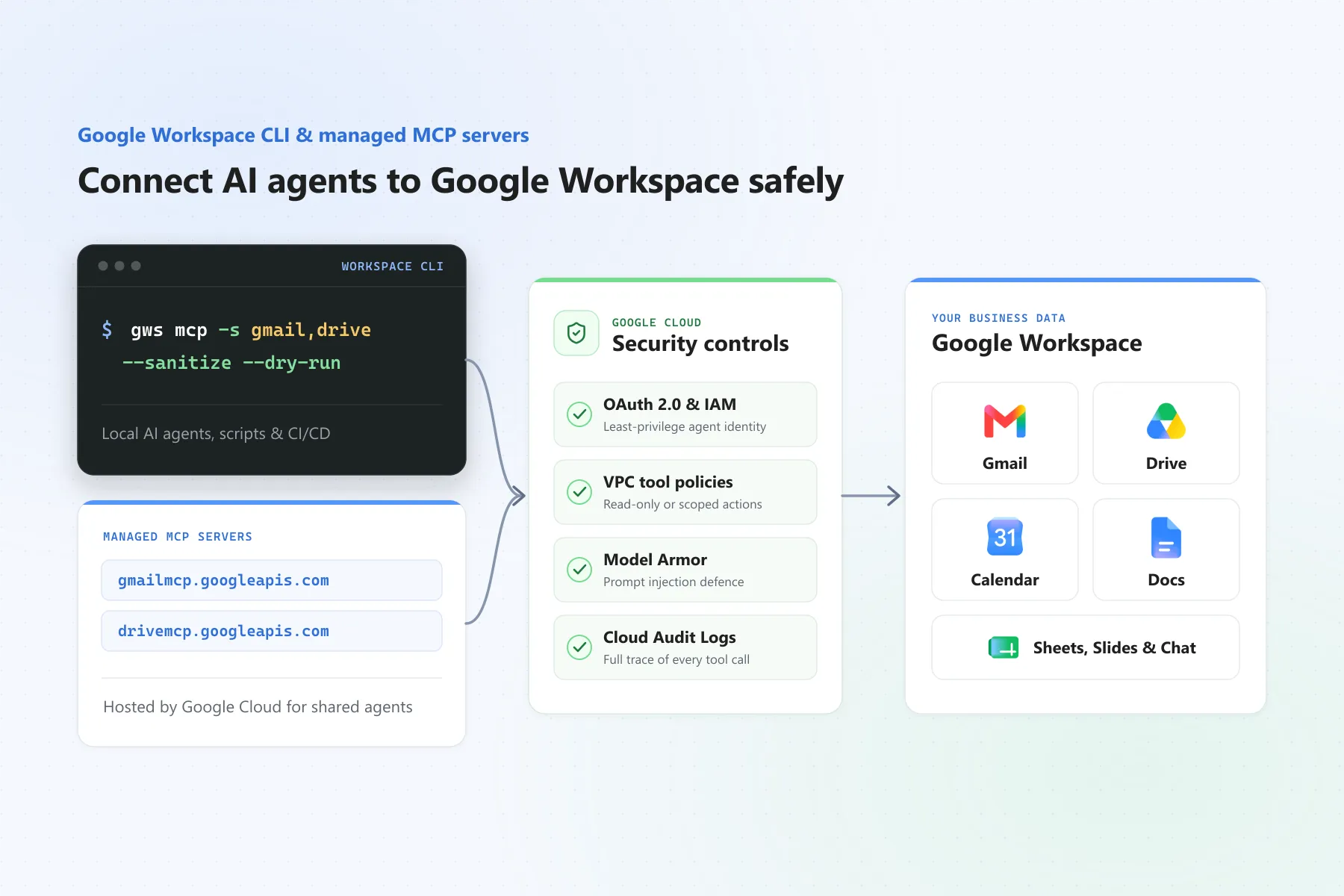
gwsships with over 100 pre-built agent skills and a local MCP server (gws mcp) so AI coding assistants and desktop agents can connect to Workspace directly. You can restrict which services are exposed using scope flags—for example, allowing onlygmailanddrive. - Safety nets before anything runs. Passing
--dry-runshows the exact request and parameters before executing a change against live data. Passing--sanitizeroutes Workspace output through Google Cloud Model Armor to strip hidden prompt injections before the content reaches an LLM.
For developers and technical teams, getting started locally takes two commands:
npm install -g @googleworkspace/cli
gws auth setup
Google-managed Workspace MCP servers
The Model Context Protocol (MCP) is the open standard for connecting AI clients and agents to external tools. Instead of building a separate integration for every AI app—whether that’s Gemini CLI, Claude, Google Antigravity or a custom internal agent—you connect the client to a standard MCP server.
With Google’s managed Workspace MCP servers, you no longer need to host or maintain your own connector infrastructure. Google runs remote MCP services for core Workspace apps, including:
- Gmail (
gmailmcp.googleapis.com) - Google Drive (
drivemcp.googleapis.com) - Google Calendar (
calendarmcp.googleapis.com) - Google Chat (
chatmcp.googleapis.com) - Docs, Sheets, Slides and People / Workspace Search
Setup runs inside your own Google Cloud project:
- Enable the required Workspace APIs and corresponding managed MCP services via
gcloud. - Configure your OAuth 2.0 consent screen and web client credentials so every action runs with proper user consent.
- Add the managed Workspace MCP endpoints to your MCP client configuration.
CLI vs managed MCP servers: which one to use
Both tools open up Google Workspace to AI agents, but they fit different jobs:
Google Workspace CLI (gws) |
Google-managed MCP servers | |
|---|---|---|
| Best for | Local development, IT scripting, CI/CD jobs and developer AI assistants | Shared, production AI agents and company-wide MCP clients |
| Where it runs | Installed locally via npm (with an optional local gws mcp server) |
Hosted and managed by Google Cloud |
| Access control | Local OAuth or service accounts, CLI scope flags (-s) and --dry-run |
Google Cloud IAM, OAuth 2.0, VPC Service Controls and Workspace policies |
| Typical users | Developers, systems admins and power users | IT teams, security leads and business teams running shared agents |
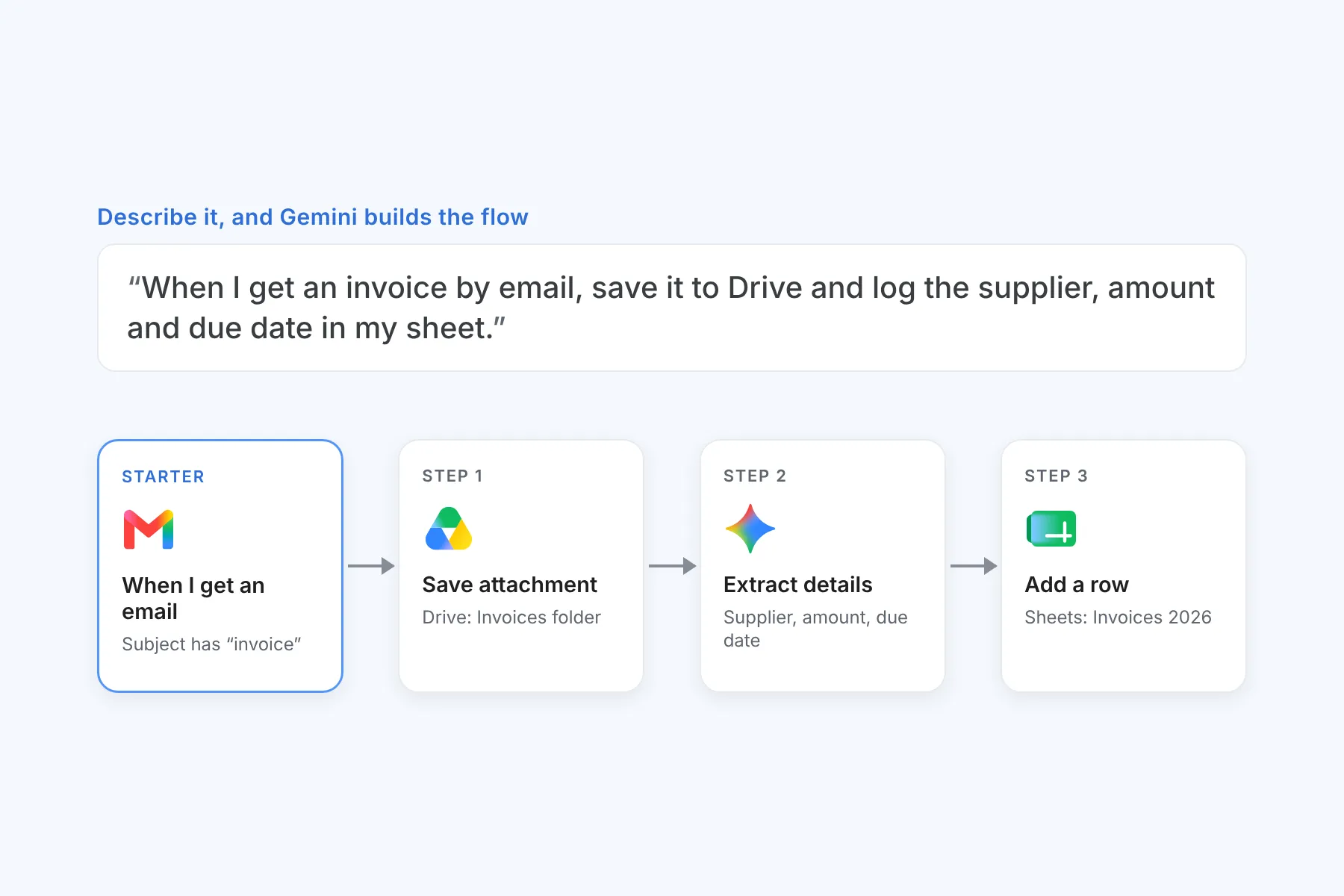
If you just want simple, no-code automations inside Gmail, Drive and Sheets for everyday staff, start with Google Workspace Studio first. Reach for the CLI and MCP servers when you are connecting external AI agents, coding assistants or custom business systems to Workspace.
Deploying AI agents safely in your business
Giving an AI agent access to email, calendars and Drive files brings real productivity gains—and real security questions. What stops an agent from being over-privileged? What stops a malicious instruction hidden inside an incoming email from tricking an agent into forwarding confidential files?
In its guidance on deploying agents safely in the enterprise, Google Cloud sets out four layers of protection that work directly with Workspace MCP:
1. First-class agent identities and least privilege
Rather than sharing generic service accounts or storing hardcoded API tokens, Google Cloud gives agents their own native identities that behave as first-class IAM principals. Combined with user-delegated OAuth 2.0 and Principal Access Boundary policies, an agent only reaches the resources it is authorised for—and still respects your existing Workspace permissions and Drive ACLs.
2. Tool-level rules with VPC Service Controls
Network perimeters can now inspect MCP calls directly. Using VPC Service Controls, admins can set conditional rules on MCP attributes such as mcp.toolName, mcp.method and mcp.tool.isReadOnly. That means you can let an agent search and read Gmail threads while explicitly blocking write actions like send_message.
3. Prompt injection defence with Model Armor
Model Armor inspects prompts, tool inputs and untrusted responses inline. When an agent reads an external email, calendar invite or shared document, Model Armor screens and sanitises the content to block indirect prompt injection and prevent sensitive data from leaking out.
4. Centralised visibility and audit logs
To avoid “shadow AI” where teams connect unapproved agents to company data, Google Cloud adds:
- Agent Registry: a central inventory of internal, Google-managed and third-party agents and MCP servers.
- Agent Gateway: a single policy enforcement point to route, secure and monitor agent traffic.
- Cloud Logging and Cloud Trace: full audit trails showing which emails, documents or calendars an agent accessed, and every tool call it made along the way.
A practical way to start
You don’t need to open up your entire Workspace to AI agents on day one. A sensible rollout looks like this:
- Test in a sandbox project. Enable the Workspace CLI or managed MCP servers in a dedicated non-production Google Cloud project so your IT and technical leads can evaluate them safely.
- Start read-only. Begin with narrow OAuth scopes, read-only MCP tool policies and Model Armor sanitisation switched on from the start.
- Tidy Drive sharing first. Just like with Gemini in Google Workspace, an agent can find anything the signed-in user can open. Review over-shared folders and shared drives before scaling up.
- Keep a person in the loop. Let agents search, summarise and prepare drafts; let your team check and approve anything that goes to a client or changes live records.
How cozan helps
We work AI first, with a person in the loop, always. If your team is looking at connecting AI agents to Google Workspace—whether through the Workspace CLI, managed MCP servers or Gemini Enterprise—we can help you set it up cleanly:
- Security and sharing review. We audit Drive permissions, Workspace security settings and admin controls before agents are connected.
- Google Cloud and MCP setup. We configure your Google Cloud project, OAuth consent, scoped MCP endpoints and Model Armor guardrails.
- Practical pilots. We help you choose one or two high-value, low-risk workflows to test with your team before rolling out more broadly.
Interested in exploring what Workspace CLI and MCP servers could do for your team? Talk to us about AI in your Workspace.